


We’ve all been there, you’ve got friends over and the time comes: “Hey, what is your Wi-Fi password?” and you find yourself spelling a random assortment of uppercase letters, symbols, and numbers like you’re some sort of code wizard. “No, that’s a capital ‘I’… no, not a ‘1’… oh, you used an ‘0’ instead of a zero……” in the meantime everybody’s patience is starting to fade.
There is a better way and it’s pretty simple, a Wi-Fi QR Code! Instead of typing a password, your guests can simply scan the Wi-Fi QR Code in their phone’s camera and connect automatically. No typing, no awkward silences, and definitely no connection to your neighbour’s Wi-Fi.
It will be easier to share your Wi-Fi with friends and family in your home. In a cafe or restaurant, it will allow us to connect customers quicker and improve customer satisfaction. In an office or event, a QR Code gives an extra layer of professionalism and security to your network.
In this guide, we will show you how to create your own Wi-Fi QR Code yourself, and provide a few ideas about how you can display and use your code in your home, office, or retail space, and share it with your clients or guests.
What is a Wi-Fi QR Code?
A Wi-Fi QR code is just a QR code that is scannable. When someone scans it from their phone’s camera or QR code app their device connects to your Wi-Fi automatically and they do not have to type any of the log in details.
Another question that arises is, how QR code works? QR codes store data in a visual pattern of black and white squares. This pattern can store your login credentials in a format instantly recognized by devices. Most modern smartphones (Android/iPhone) can scan Wi-Fi QR codes directly from the camera app and no download is needed.
Why is this better than just giving someone your password?
Less chance for error : No confusion of “O” vs “0” or leaving out a special character.
Faster connection : Guests are online in seconds.
More private : That other person is accessing your network without you telling the world your password.
This is the same technology you have seen on menus at restaurants or check-ins at events, it is just used to connect people to your Wi-Fi.
Advantages of Using a QR Code for Guest Wi-Fi Access

Convenience
No more drawn-out explanations or letter-by-letter spelling. Your guests simply pull up their camera, scan and they’re connected. This is especially true for kids, elderly relatives or anyone you can imagine gets frustrated trying to operate tiny smartphone keyboards.
Speed
If you’re running a busy coffee shop or hosting a BBQ on a weekend, being quick is helpful. With a Wi-Fi QR code, your guests are connected instantly, which leaves you more time to enjoy yourself and less time dealing with connection problems.
Security
A printed Wi-Fi QR code keeps your password off the public’s radar. It’s not nearly as easy to overhear the password than to yell it across the room. You can even control how and where it is displayed, keep it inside your home or on a limited number of tables in your business, and keep it from random guests.
Professionalism
If you operate a cafe, co-working space, or hotel, a QR code for guest Wi-Fi access adds a fresh and modern feel to your reliability. It shows you are concerned with efficiency and customer experience. You can even create a QR code that is branded in your colours and logo to match the look of your space.
Aesthetics
In addition to its functionality, a Wi-Fi QR code can fit into your aesthetic. For example, you could make it into a small card in a nice frame, or design a wall sign that is in harmony with the rest of the room. It will serve a purpose, but can also possess some artistic form.
What You Need to Know Before You Create a Wi-Fi QR Code?
Before you dive into creating your brand new Wi-Fi QR code, there are a few basics you need to know about your network. An analogy would be to think of this as gathering the “ingredients” before preparing a meal. It’s pretty straightforward, but if you forget one or miss an ingredient in cooking, it simply will not taste right.
Network Name (SSID)
This is the name of the Wi-Fi network, or SSID, that your network broadcasts, or the network name normally seen when you access the Wi-Fi list on your phone or laptop. Be careful to type it exactly as it is set including spaces, capitalization, and punctuation. Another item to mention, “Milople_Guest” is not the same as “milople_guest” to the device.
Wi-Fi Password
This is the magical key to your network, and you will want to double-check the spelling. It is easy to make a mistake when typing, and even a single character can affect whether your QR code works or not. If you are not sure of your password, you can either usually find it in your router settings, or it could also be printed on the router.
Network Type (WPA/WPA2, WEP, or None)
Most Wi-Fi networks nowadays use WPA2 or WPA3 if you have a current router. This is important because the QR code generator will need to know the type of encryption to allow devices to connect.
How to Make a Wi-Fi QR Code?

You now have all of your network information ready. Next, you need to make it into a scannable, guest-friendly QR code. Here are three ways you can do this from most simple to most techy.
Using an Online QR Code Generator
This is probably the quickest and easiest way to do it for most people. The steps:
Go to a reliable QR code generator, Example: QR Meta
Search for “Wi-Fi” from the list of possible QR code types.
Enter the SSID (network name, what you see when you check available networks), enter your password (case sensitive), and pick encryption (WPA/WPA2 should be most common).
Click Generate and you will get a Wi-Fi QR code.
Download the QR code image (PNG, JPEG, or SVG) and keep it in a safe place!
Print it, maybe frame it, or keep it in your smartphone for easy sharing.
Smartphone Usage
On iPhone
As of iOS 15, Apple does not have a feature that allows you to generate a Wi-Fi QR code, either built-in or from trusted third-party apps. There are 3rd party apps, you can download.
On Android
Many newer Android devices (Samsung, Google Pixel, and Xiaomi) already have this feature built in. To do this, go to Settings > Network & Internet > Wi-Fi. Then tap your network name, and locate the Share option. You will be prompted to verify with your fingerprint or PIN, and then you will see the QR code. Guests can scan the code directly from your screen or you can take a screenshot to print out the code at a later time.
Using Command Line Tools
If you are a keyboard warrior, you can just generate a Wi-Fi QR code directly from your PC without a browser or a third party.
On Linux & macOS
Just install something like qrencode.Then, you can run a command like this, qrencode -o wifi.png “WIFI:T:WPA;S:YourNetworkName;P:YourPassword;;” And it will create a wifi.png file with your QR code.
On Windows
You can use Python scripts utilizing the qrcode module, or Windows Subsystem for Linux and run the same qrencode command.So, why do this? You have zero data leaving your machine, leaving your network credentials completely private.
It’s fast and repeatable if you are generating codes for many networks.
How to Share and Showcase Your Wi-Fi QR Code?
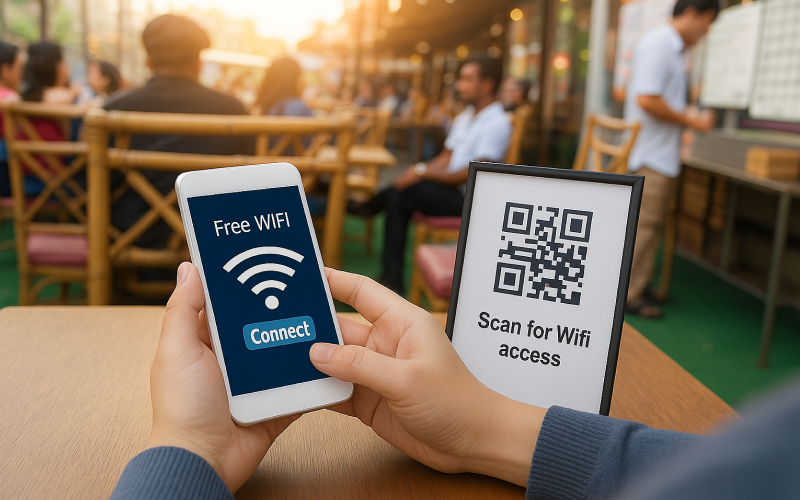
Now that you have created your Wi-Fi QR code, you have only completed half of the work, the other half will happen when you make it easy for guests to see and scan it. Below are different ways to creatively and practically share it.
Print on signs, posters, table tents, or stickers
For cafes, restaurants, and offices, a printed Wi-Fi QR code will provide your guests with a stylish as well as a convenient access to your Wi-Fi.
Encourage your guests to use the QR code to scan from the home screen on table tents, providing access to Wi-Fi without the need to ask any of your staff.
Place the Wi-Fi QR code signs or posters near your cash register or reception area so guests can easily see it.
Consider using a vinyl sticker to place the QR code on a wall, door, or even on a coffee sleeve to give it a fun twist.
Make sure the code is made and printed large enough, and high-contrast for visibility.
Add to a welcome booklet for guests in hotels
If you host people as guests, your Wi-Fi QR code can be part of a thoughtful welcome:
Include it in the small booklet of important house rules, local recommendations for food or shopping, and instructions on using the space.
You can print it on laminated cards, to protect from guests writing on it, from wear and tear.
If you like, you can also combine it with the written network name for guests who want to type the network in manually.
Sending as an Image File through Email or Messaging Services
Sometimes your guests are not in the same room yet or you may be hosting a virtual meeting, and you want an easy way for attendees to obtain the Wi-Fi password when they arrive.
Email the QR code image in advance.
Send it via WhatsApp, Telegram or Messenger.
Save it to your phone gallery so you can easily share it if someone requests the Wi-Fi.
Displaying Digitally on Tablets or Smart Displays
If you have smart displays, such as digital kiosks or even a tablet at your front desk, you can create a digital space for your QR code.
You can rotate it on the screen with digital greetings or welcome messages.
You can use it as a screensaver or lock screen image on staff devices.
Be sure to keep the screen bright, clean and easy to scan.
Conclusion
In the modern world where everything is instant, fiddling with Wi-Fi passwords is fairly antiquated. A Wi-Fi QR code is a minor enhancement with great rewards. Whatever your hosting situation, be it a cafe, Airbnb, or having friends over, you can finally dispense with awkwardly reciting a password to connect to Wi-Fi.
Simply by placing your QR code in a viewable, stylish, and easily accessible manner, you are providing a seamless, welcoming experience for guests and potentially a few, “Wow, that’s smart!” comments.