

You’ve attended some outstanding networking events, spoken with numerous exciting people and collected a large collection of business cards from the various networking events.
Instead of keeping them in a drawer, smashed into your jacket or carted away because you lost them all prior to entering them manually into your phone, paper business cards are becoming obsolete because they are often lost, becoming discarded. The use of a QR Code vCard allows a user to connect with someone via a unique QR code that links to an online version of their contact information, thereby allowing the user to have quick and easy access to the person and maintain the professional connection.
For more convenience, save your contact information. The digital business cards simplifies this process by allowing you to save all of your contact information in a simple to use digital format.
What exactly is a vCard QR Code?
Alphabetically, vCard is simply an electronic version of a business card, which contains all the contact details. It can include your name, title, company name, phone number, email address, and often a photo of you or the website for your business or organization.
The QR Code is how you can digitally create and send a vCard instead of writing on a piece of paper, so it’s important to understand this new technology!
The vCard can provide your contacts with instant access to everything that’s listed on your card simply by scanning your QR Code. Your contact would not have to take a picture, type in your email address, or anything else.
Why Use a Digital vCard?
When we say, “Why use a digital vCard?” There are many reasons, and in this article, we’ll go over four advantages of using a digital vCard vs. a paper-based card.
With the existing use of paper, why would someone want to switch to a digital card? A paper card has been part of everyday life for a long time; a digital card will eliminate some of the frustrations you might experience with a paper card.
1. Speed and Accuracy
Pulling information about a contact from a source like vCard will always deliver the most accurate information to the contact when entered. The information contained in the Digital Business Cards is stored exactly the way it was created in the card and delivered each time you create a vCard. This makes pulling information for a new contact from a vCard free of any mistakes you may have made when manually entering that information.
2. Always Updated
If you printed 500 cards and then changed your job title or phone number in less than a month, those printed cards are as good as trash. Many QR Code vCard services allow for you to create dynamic QR Codes that link to a cloud-based profile, which can be updated with new information. If you update your email address in the profile, anyone who scans the QR Code will receive updated information no matter when they scan it.
3. Environmental Friendly and Economically Beneficial
Let’s face it, paper business cards do not help the environment. By utilizing a digital business cards, you significantly reduce your carbon footprint. Once you’ve purchased a digital service or created a QR Code once for your digital card, you don’t need to spend more money on reordering cards to print and you won’t be left with thousands of obsolete cards to throw away. This combination of saving money on reordering cards and reducing waste is a huge win-win for both you and your pocketbook as well as the environment.
4. Offer Comprehensive Experience And Create Stronger Relationships
The main limitation of traditional paper cards is that there simply isn’t enough room on them. The QR code vCard gives people access to your full online profile with many features and content like: The individual’s photo, instant links to their LinkedIn and portfolios and/or any social network site, and an intro about themselves. However, while a traditional paper business card provides only the basic contact info of the individual, with a vCard, individuals can learn about that person in one click and will have an understanding of their complete capability.
| Feature | Digital Business Cards | Paper Business Card |
| Accuracy | Always exact; auto-fills without manual errors | Manual entry may cause errors |
| Updates | Instantly update anytime; always current | Cannot be updated after printing |
| Cost Efficiency | One-time creation; no reprints needed | Requires frequent reprints when info changes |
| Environmental Impact | Eco-friendly; no paper waste | Uses paper; contributes to waste |
| Information Capacity | Unlimited details, links, media | Very limited space |
| User Experience | Interactive, dynamic, richer profile | Static and minimal content |
How to Create and Use Your Digital Business Cards
Ready to make the switch? Here’s a simple guide to creating your Digital Business Cards using a service like QR Meta.
Step 1: Select vCard and Proceed to Creation
Once you land on the QR Meta page, you must first tell the system what kind of information you want the code to hold.
- On the left sidebar, under QR Code Types, you need to click the V-Card option.
- The main content area will then display the title “Create V-Card QR Code.”
- To move forward to the input form, click the prominent blue “Create Now” button in the center of the screen.
This takes you into the essential data-entry phase.

Step 2: Step 2: Access the Dashboard
- Now you can access the QR code generator dashboard screen.
- Select “Create QR Code” from left sidebar
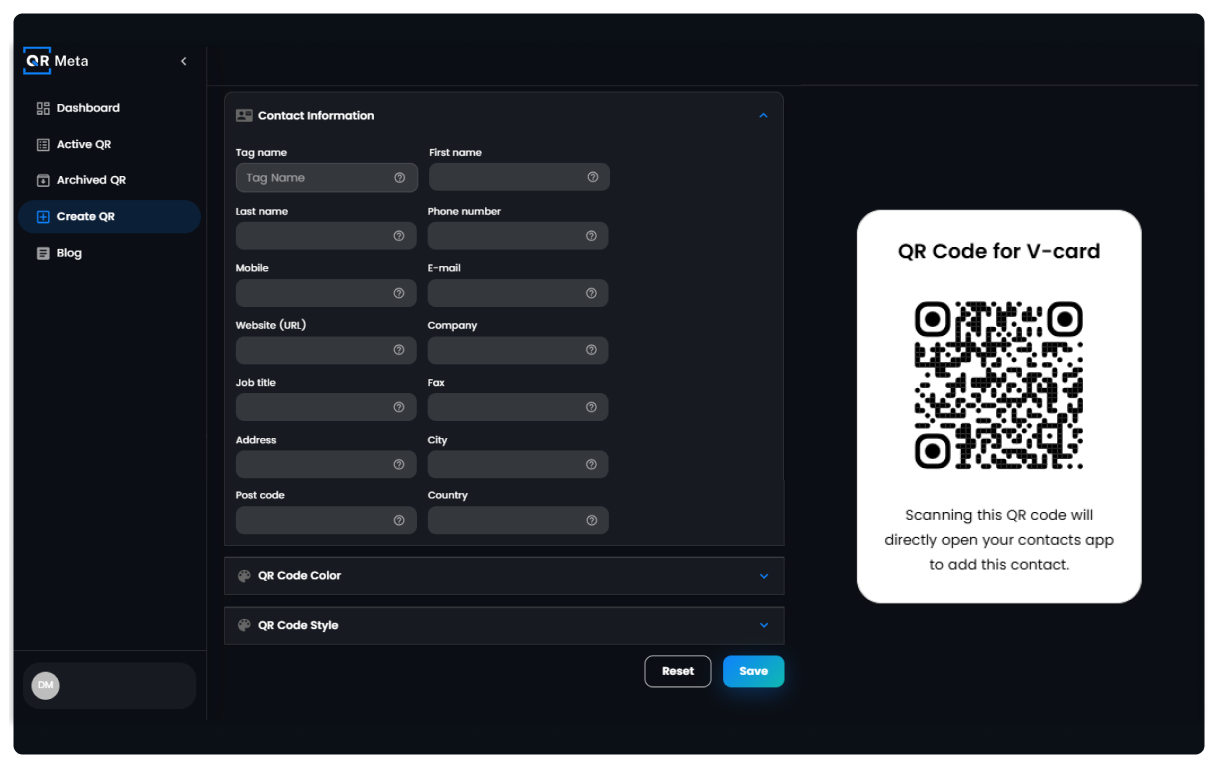
- Locate the three main options: Contact Information, QR Code Color, and QR Code Style.
- Ensure the “Contact Information” section is selected (or expanded).

Step 3: Input and Verify Your vCard Data
This step is the core data entry. You must fill out all the fields in the Contact Information section with accurate details. The more complete the information, the more professional your digital card will appear.
- Tag Name: (Crucial for organization) Give your QR code a recognizable name, like “My Professional vCard” or “Jane Doe’s Contact.”
- Name and Phone: Enter your First name, Last name, Phone number, and Mobile number.
- Email and Web: Enter your primary professional E-mail. Under Website (URL), add the link to your professional portfolio or, most commonly, your LinkedIn profile.
- Professional Details: Fill in your Company name, your current Job title, and any other contact methods like a Fax number (if applicable).
- Location: Complete the Address, City, Post code, and Country fields, typically using your business’s physical address.
IMPORTANT: As you fill this out, watch the QR Code for V-card preview on the right side of the screen. The code will update in real-time, showing it’s correctly compiling your contact data.
Step 4. Design Your Code for Impact
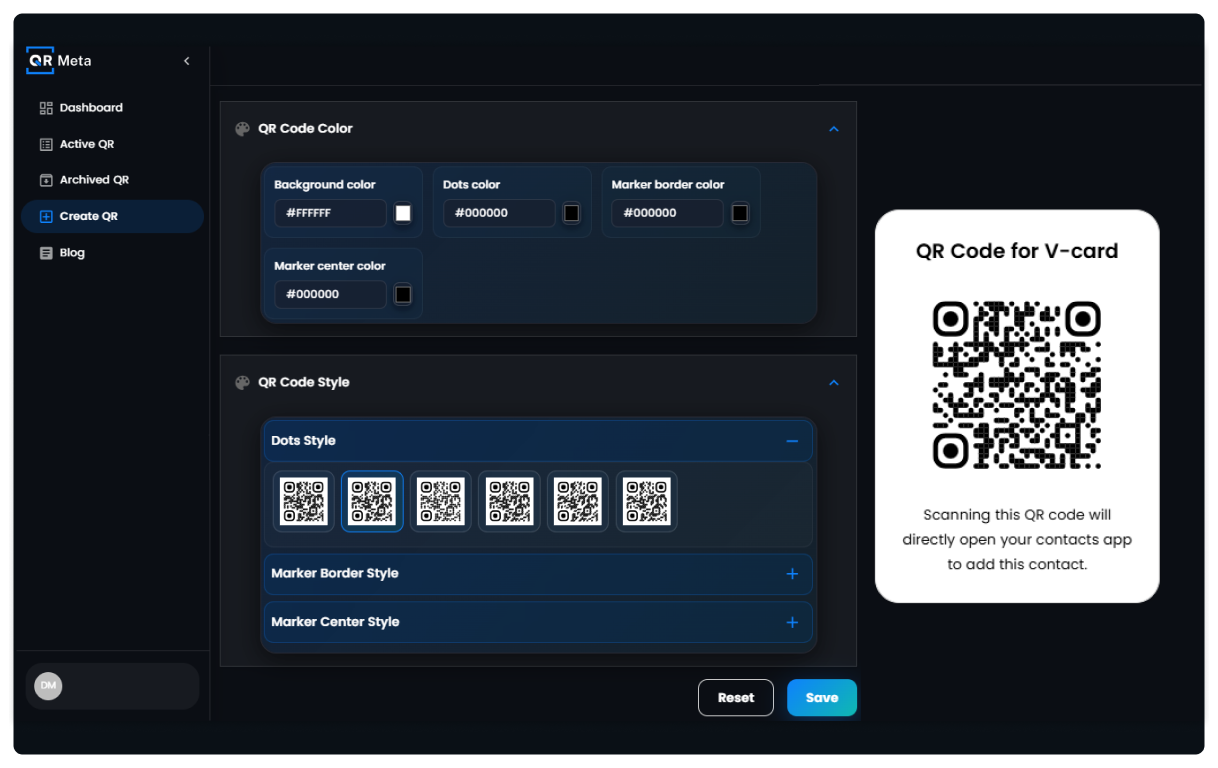
A QR code doesn’t have to be a boring black square! Once the data is entered, move to the customization section to align the code with your personal brand:
- Custom Colors: Change the foreground color of the QR code to match your company’s brand colors or a professional, eye-catching shade.
- Shape & Pattern: Experiment with the different patterns for the code’s “dots” and “eyes” to give it a unique look.
- Add Your Logo: Upload your company logo or a professional headshot. Embedding an image in the center makes the code instantly recognizable and reinforces your brand identity.
Step 5. Generate and Download
After you finalize the design, generate the code and download the image file. We highly recommend downloading it as an SVG (Scalable Vector Graphic) or a high-resolution PNG. These formats ensure the code remains perfectly crisp and scannable, whether you display it on a phone screen or print it on a lanyard.
Step 6. Perfect the Handshake Moment
When you meet someone new and they ask for your card, you are ready with your Digital Business Cards displayed directly on your mobile lock screen. Deliver the prompt with confidence:
“I’ve gone fully digital! Just use your phone camera to scan my lock screen, it will instantly save all my professional details, including my contact information, right into your address book.”
This phrase is instructional, enthusiastic, and clearly explains the instant, error-free benefit of the digital exchange.
Step 7. Test, Test, Test
Before you rely on your Digital Business Cards, test it thoroughly on different phones (iPhone and Android) and different scanning apps to ensure it saves correctly and pulls up all your links as intended. Make sure the file saves into the contact book, not just opening a temporary browser page!
Secret to Networking Success
Networking is much more than just providing and receiving contact information. With the digital business cards available now, you can create a compelling impression as soon as you exchange your contact details.
The “Wow” Factor
Using your smartphone or displaying the QR code of your virtual business card on your phone’s lock screen or similar areas to prompt a quick scan is much more memorable than searching through a wallet for a hard copy of your business card on coated card stock. Your phone’s QR code instantly communicates your preference for being tech-savvy, efficient and modern. You appear ready to engage, and you can easily turn your digital cards into a conversation starter.
Instant Follow-Up Power
Consider the moments after a networking event. When someone stores your vCard into their device or phone, they will already have everything they need to send you follow-up messages. There will be no more searching for your social media profile after returning to their desk or waiting until they have time to send you an email.
Since they can connect with you on LinkedIn or email you immediately after getting your contact information, the higher the likelihood that they will actually follow up with you.
Endless Possibilities
The opportunities for using a traditional printed business card to connect with other people are limited. But using a Digital Business Cards and the options mentioned below, you can use your vCard in literally millions of different places.
- Your phone : Create your QR code, save it to your lockscreen background so you can quickly find it.
- At every presentation : Create a slide that contains your QR code at the very end of your presentation. It will give people the opportunity to connect with you instantly after your presentation.
- During Webinars and Zoom : Use your QR code as part of your background during the presentation (if applicable) and share it as a chat message or during the Q&A session after the presentation.
- As part of your email signature : You can easily link your vCard QR code into the footer of all your emails.
- On Printed Materials: Place the QR Code on a small sticker and place it on the back of your computer or on the case of your phone.
Our Future Will Be Scannable
In the not-too-distant future, there will no longer be such a thing as “paper clutter.” With the use of digital technology so prevalent today, relying on a traditional method that involves manual data entry to establish contact information is guaranteed to maintain your separation from people.
A QR Code vCard is not just a tech toy; it is an extremely effective, environmentally friendly, and powerful way for you to store your contact information precisely, instantaneously, and permanently. By switching to the QR Code vCard, you are not simply following a trend; you are developing your skill in the area of modern and successful networking.
Are you ready to take your networking to the next level? Check out the many vCard generators available today to learn how easy it is to connect with others using a QR Code vCard.
FAQs:
- What is a QR Code vCard?
A digital business card that can be scanned to instantly save your contact details.
2. Why use a digital business card?
It’s always updated, eco-friendly, and easier to share than paper cards.
3. How does it help with networking?
People can save your info instantly, making follow-ups more likely.
4. Can I customize my QR Code vCard?
Yes, you can change colors, add logos, and adjust the design.
5. Where can I use my QR Code vCard?
On your phone lock screen, emails, presentations, webinars, and printed materials.